
The fields that take longest at the front desk are the ones a client knows before they walk in: address, date of birth, medical history, an emergency contact. With pre-arrival forms you send a link ahead of the visit and the client answers on their own phone. The answers wait on your iPad as a draft, and at the desk the client checks them and signs.
Pre-arrival forms came with InPersonForms 1.6.0, and sending forms ahead is free.
Set up the online form once
A template’s online form is what a client fills in on their phone’s browser. Only Digital Fields templates have one: on the template’s page, tap Online Form.
Fields lists every question in fill order, each with a switch for whether it goes online. Signature and initials fields read Signed in person and have no switch, because they are always signed at the desk. A date field that fills in today’s date starts switched off, so a client’s answer does not replace the signing date.
Under Practice you set the Practice Name, Email for Answers and Color that every online form shares. The name and color head the page a client opens, and no link goes out until the name is filled in. The email is optional, and with one set a client can also send their answers to it. Preview shows the page as a client will see it.
Each field can also have Help Text of up to 280 characters, shown under the question on the online form and in the fill panel on your device.
Send it to one client
On the client’s page, tap Send Pre-Arrival Form, pick the form, and share the link through Messages, Mail or any other app in the share sheet. You can also start on the template’s page, where Send Pre-Arrival Form sits under Fill This Form, and pick the client next.
The link works for 30 days, and the message sent with it gives the date. It leaves out the name, phone and email questions, since the client’s record already has them.
A link anyone can use: the intake link and QR code
For new clients you haven’t added yet, the online form screen has Share Intake Link and Intake QR, a code you can print or share. Any new client can scan it to fill in the form before arriving. An intake link never expires and keeps the name, phone and email questions. Its answers arrive with no client attached, and you choose the client when you open the draft.
What your client sees
The link opens in their phone’s browser, in its language if that is one of the app’s ten, and in English otherwise. At the top are your practice name in your practice color and the form’s title, then one question per row, with the required ones marked. A signature row says “You’ll sign this when you arrive.”
Their answers are kept on the phone as they type, so opening the link again brings them back. When they tap Done, the page checks the required questions and shows a check-in code with “Show this at the front desk.” Under it, they can copy the link to their answers, share it, or email it to you if you set an Email for Answers. Answers too long for a QR code have to be sent this way instead.
Opening the link after that offers Change answers, Start a new form, and Remove my answers from this phone. At the bottom, the page says “InPersonForms does not check who made this form.”
When they arrive, bring the answers in
On the Clients tab, tap the scan button at the top and point the camera at the check-in code on the client’s phone. The iPad’s own Camera app reads it too. If the client sent a link instead, open it on the iPad or iPhone where you use InPersonForms. If it opened somewhere else, such as a mail app’s built-in browser or a computer, copy it and tap Paste Link on the scan screen.
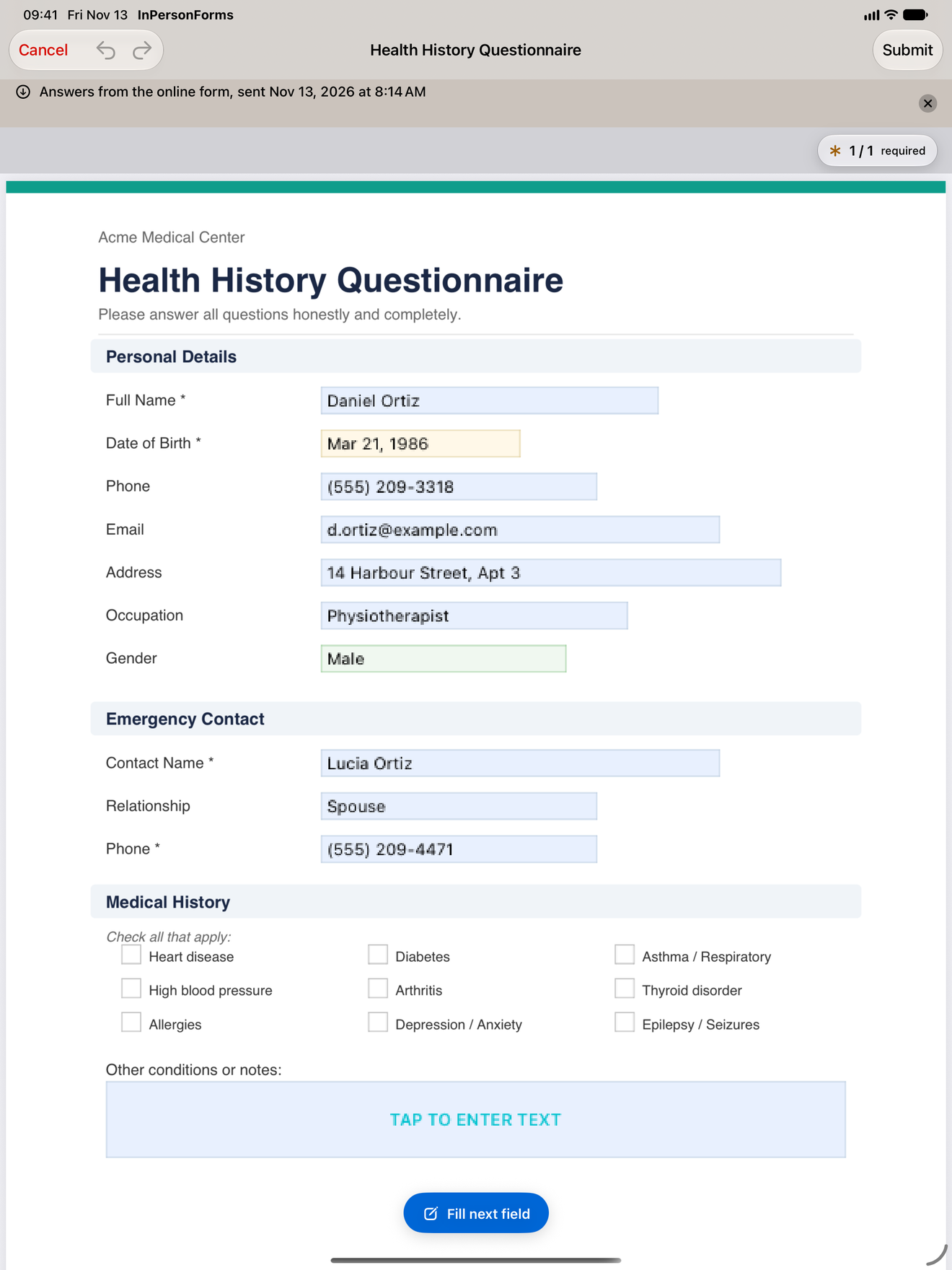
The answers become a draft of that form for that client, in Records and on the client’s page, headed “Answers from the online form, sent” and the time the client tapped Done. Check the answers with the client, have them sign, and submit. As with any form, name, phone and email reach the client’s record only then.
Each set of answers is its own draft, so a client who changes their answers and sends again gives you two drafts, each with its own time. Scanning the same code twice makes no second draft: the app says Already Received and points you to the first one.
Where the answers travel
InPersonForms itself sends nothing over the internet, pre-arrival forms included. The link carries the form, and the client’s browser locks the answers so only your practice’s devices can open them. They come back in the check-in code or the link the client sends, and that link can’t be read in an inbox or a chat without your practice’s key. The page is on fill.inpersonforms.com, which serves only these form pages and loads nothing from anywhere else.
Every device in your practice holds that key, and so does every backup, so keep a backup file as safe as the client records in it. Anyone who has a client’s link could fill it in for them, but what they send is only a draft you check with the client before anything is signed.
If something goes wrong
- “This link can’t be opened.” The client sees this when their link has expired, or was cut short when copied and can’t be read. Send them a new one.
- “This code opens the online form, the one you send to clients. Nothing was imported.” You scanned a code that opens the form, such as the Intake QR, instead of the client’s answers. Ask for the code their phone shows after they tap Done.
- “This link couldn’t be read. Ask the client to send it again.” The link to their answers was cut short on the way, or it was made for another practice’s devices.
- “The form these answers were filled in for is no longer in the app.” The template was deleted after the link went out.
- “answers had no matching field” on a draft means the form was edited after you sent it. It names the answers whose question was removed, so you can ask again.
- The camera does not open. Turn on Camera for InPersonForms in the Settings app, or use Paste Link.
InPersonForms is on the App Store for iPhone and iPad.