
The form gets signed in the room. Then it disappears.
You email yourself a copy. It lands in a thread with forty other attachments. You also save one to Files, in a folder you named six months ago and cannot remember. A client calls asking what they agreed to, and now you are scrolling through email, the Files app, and the camera roll trying to find a PDF that could be in any of them. The signing was the easy part. Keeping the signed copy somewhere you can actually find it is where most in-person workflows fall apart.
The usual fix is a client portal or a cloud document service: a place where every signed copy lives, tagged and searchable. That works, but it means an account, a subscription, a login for every staff member, and your clients’ personal details sitting on someone else’s server. If you collect forms face to face, you can get the organized part without any of that, and keep everything on the device.
This is about the records side, not the signing. If you have not set up the signing flow yet, that is covered separately. Here we assume forms are already getting signed, and the question is where they go afterward.
Group every signed copy under the client, not in a folder
The first habit to break is filing by document. A folder of PDFs named consent_final_v2.pdf tells you nothing six months later. File by client instead.
In practice that means each person has one record, and every form they have ever signed sits under their name. When the same client comes back, you are not searching a shared drive, you open their profile and their whole history is there in order.
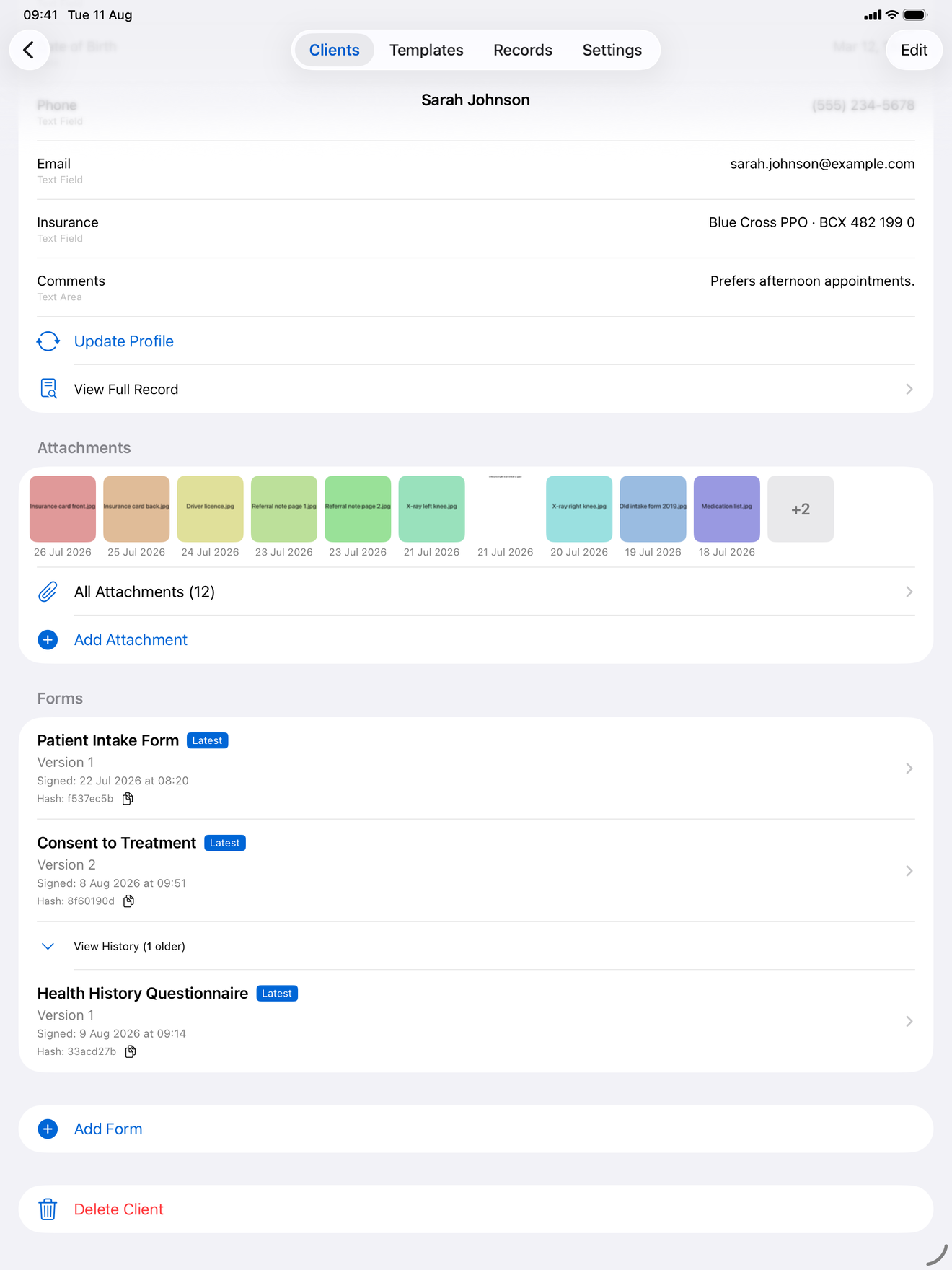
InPersonForms does this by storing client details (name, email, phone) once, then attaching every completed form to that client automatically. On Pro you can also build a profile template so details you collect once, like a date of birth or a file number, auto-fill into future forms instead of being retyped. The point holds even without the app though: pick one axis to organize by, make it the client, and never file a signed copy anywhere except under the person it belongs to.
Keep a version history instead of overwriting
The second trap is the re-sign. A client updates their address, renews a consent, or signs a corrected waiver. The tempting move is to replace the old file. Do not. The moment you overwrite, you lose the ability to answer “what did they actually agree to, and when.”
Treat an update as a new version layered on top of the old one. The original signed copy stays exactly as it was, and the new one is added alongside it with its own date. If a question comes up later about which version was in force on a given day, the trail is right there.
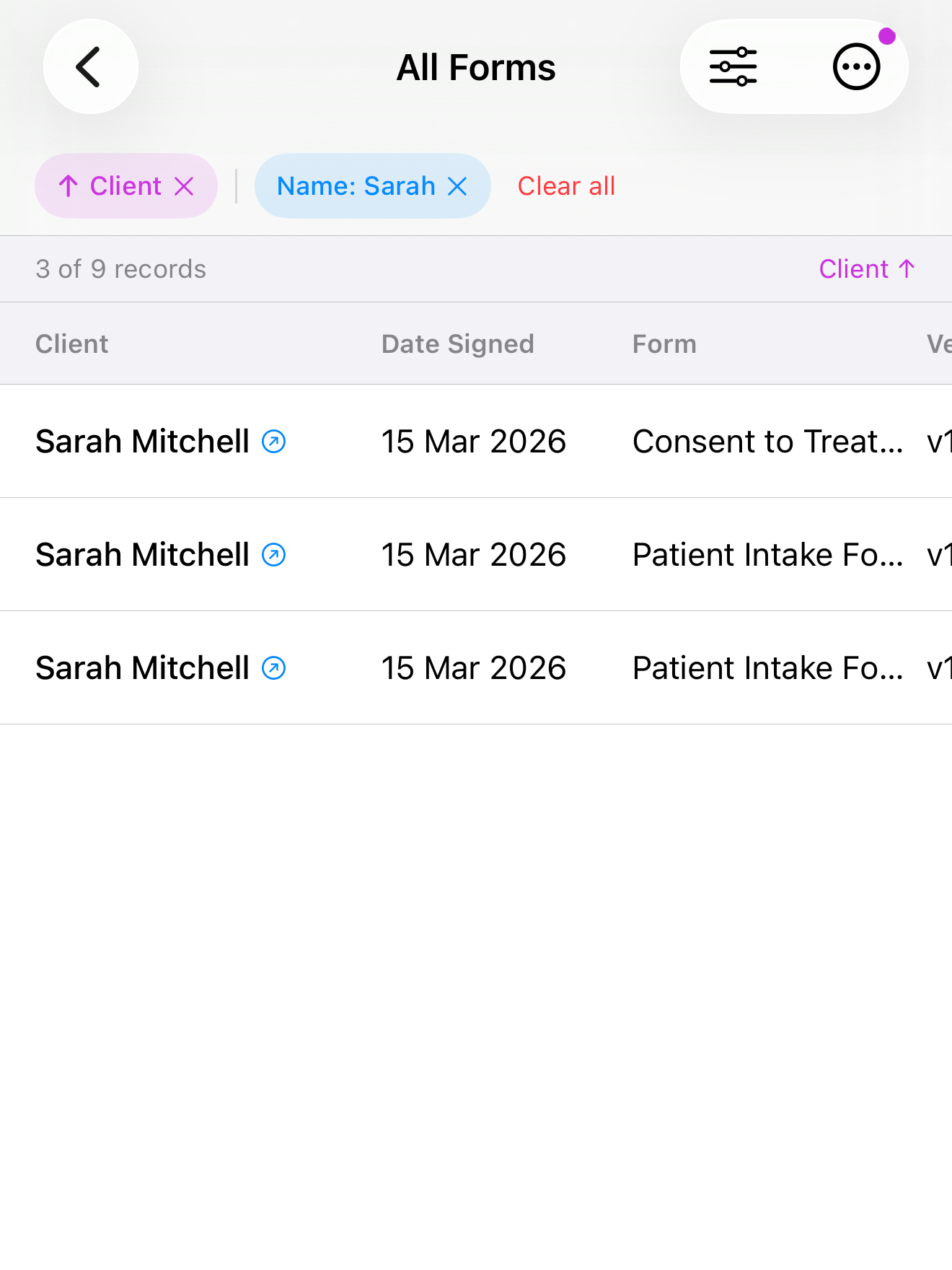
In the app this is a built-in version history per submission, part of Pro: you create a new version, optionally pre-filled from the previous data so the client only changes what is different, and the original is preserved untouched. Each signed form is also stored as a tamper-evident record with a hash, so you can confirm a saved copy matches what was signed and was not edited afterward. If you are organizing PDFs by hand instead, the manual equivalent is strict: never reuse a filename, append a date to every version, and keep the old file rather than deleting it.
Make the pile searchable
A stack of signed copies is only organized if you can pull one out in seconds. Two things make that possible: consistent naming and real search.
If you are doing this by hand in Files, the discipline is naming every export the same way, for example LastnameFirstname-FormType-YYYY-MM-DD, so a search and a sort both work. It is tedious and it only takes one rushed afternoon to break the pattern.
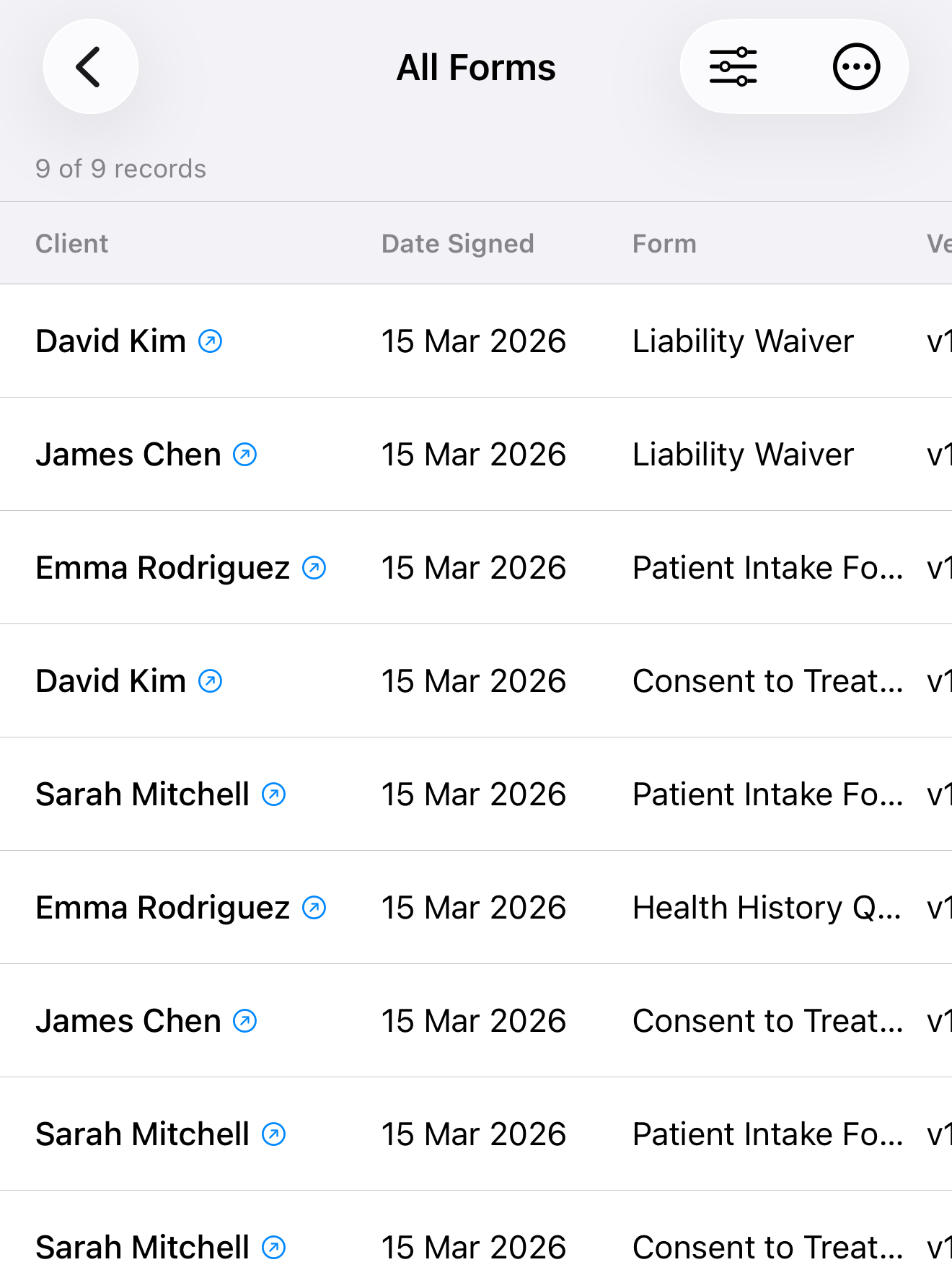
On the device, search does the filing for you. You can search by client name, and on Pro sort records by date signed, by client, or by template, and filter down by template or by answers stored in a client’s profile. So “find the intake form Maria signed in March” becomes a search and a filter, not an archaeology dig through email.
Why keeping it on the device is the point here
Standing up a portal solves findability but reopens the two problems an in-person workflow was trying to avoid. It adds a recurring cost, and it moves client data off your device and onto a server.
Keeping the records local avoids both. There is no account to provision for new staff and no subscription tied to how many clients you have. For anyone handling health, legal, or otherwise sensitive information collected in person, the records never leave your hands, which is usually easier to reason about than a third party’s data policy. The trade-off is that local-only means backups are on you. On Pro, the app can write every client, template, signed form, and PDF into a single file you keep wherever you want, and your device’s own backup covers the app as well. Do both, and do them regularly.
The short version
You do not need a cloud account to stop losing signed forms. You need three habits: file under the client, never overwrite a signed copy, and keep the pile searchable. A tool that is built for in-person records gives you all three on the device, with no portal and no monthly fee. InPersonForms groups signed copies by client and lets you search records, with version history and filters on Pro, all stored on your iPhone or iPad.
InPersonForms is on the App Store for iPhone and iPad.