
Someone photographs an insurance card at the front desk. Six weeks later a claim gets queried. The photo is still in a personal camera roll, between a parking lot and a whiteboard, on a phone that goes home at night.
This is the part of going paperless that tends not to get finished. The forms get sorted out. The supporting documents do not: the ID, the referral letter, the before photo, the scan of an old paper file a client brought in. They live in the camera roll, in a Files folder, in an email to yourself, or in a message thread. Findability is the obvious problem. The quieter one is that photos of clients’ identity documents are sitting in a personal photo library that syncs to iCloud and gets handed around any time someone shows a holiday picture. Attaching them to the client’s record fixes both at once.
Put the document where the client’s file already is
Every client record has an attachments section, sitting above their signed forms. Add a photo from the camera or your library, or a file from Files, and it lands on that client. Not in a folder you have to name, not in a shared drive with a convention nobody follows.
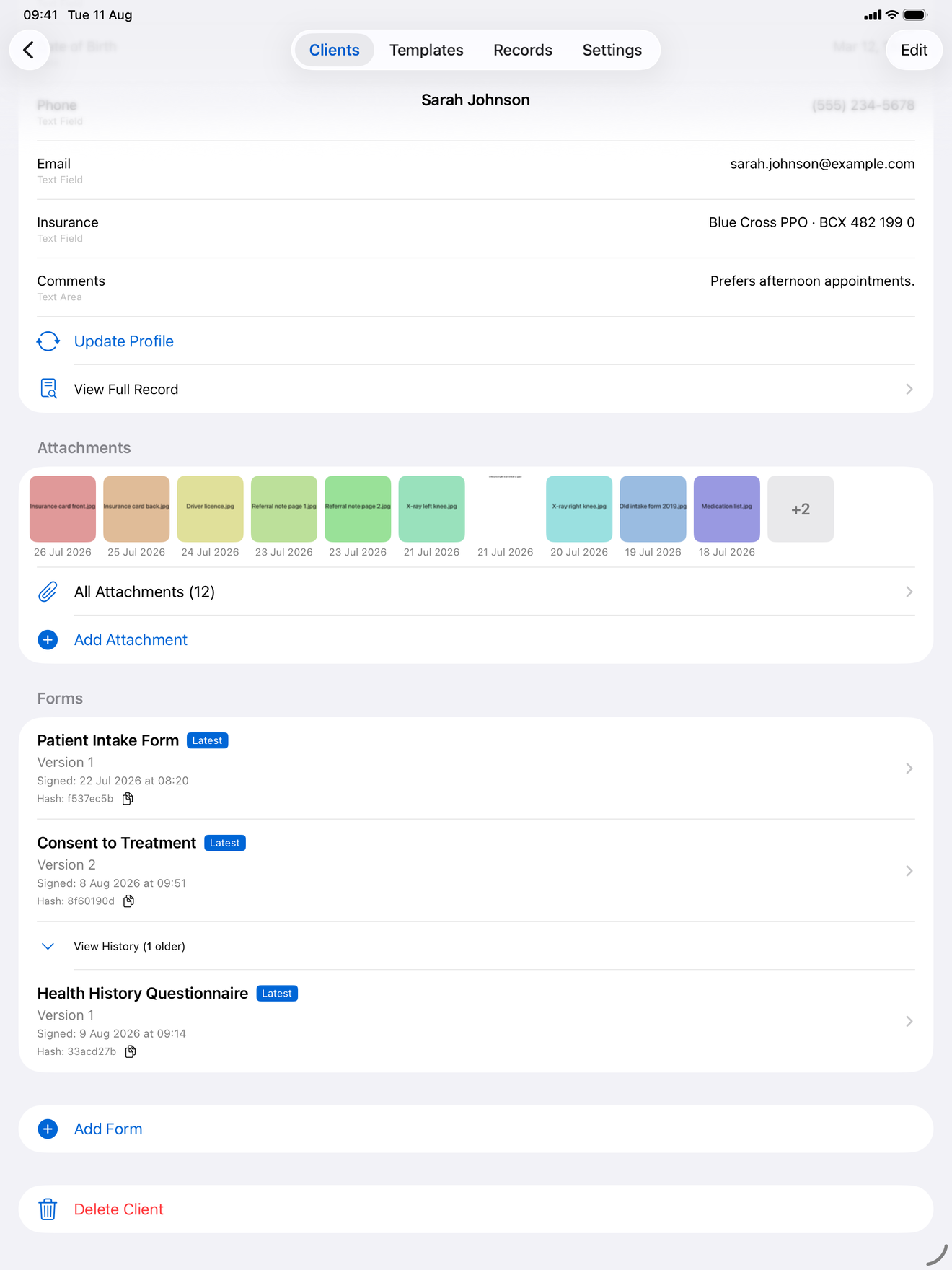
The client’s page shows a strip of recent thumbnails with a count, and a link through to everything attached to them. On that page you can switch between a grid of thumbnails and a list with names, sizes, and dates, and the app remembers which one you prefer. Tapping any item opens the full preview, where you can zoom and page through the rest without going back.
Whatever the file is, it comes across as-is: a scanned paper intake form, a referral PDF, a photo of an old record. You can select several at once from the Files picker rather than adding them one at a time.
Photos lose their location data on the way in
Every photo added to a client is re-encoded before it is stored, which drops the EXIF metadata, including GPS coordinates. A photo taken on a phone usually records where it was taken, and for a home visit that is a client’s home address, embedded in an image file.
This happens on the way in, not on the way out. What is stored on the device is already the stripped copy, so there is no version sitting around with the coordinates still in it waiting to be shared by accident. HEIC photos become JPEG in the same step.
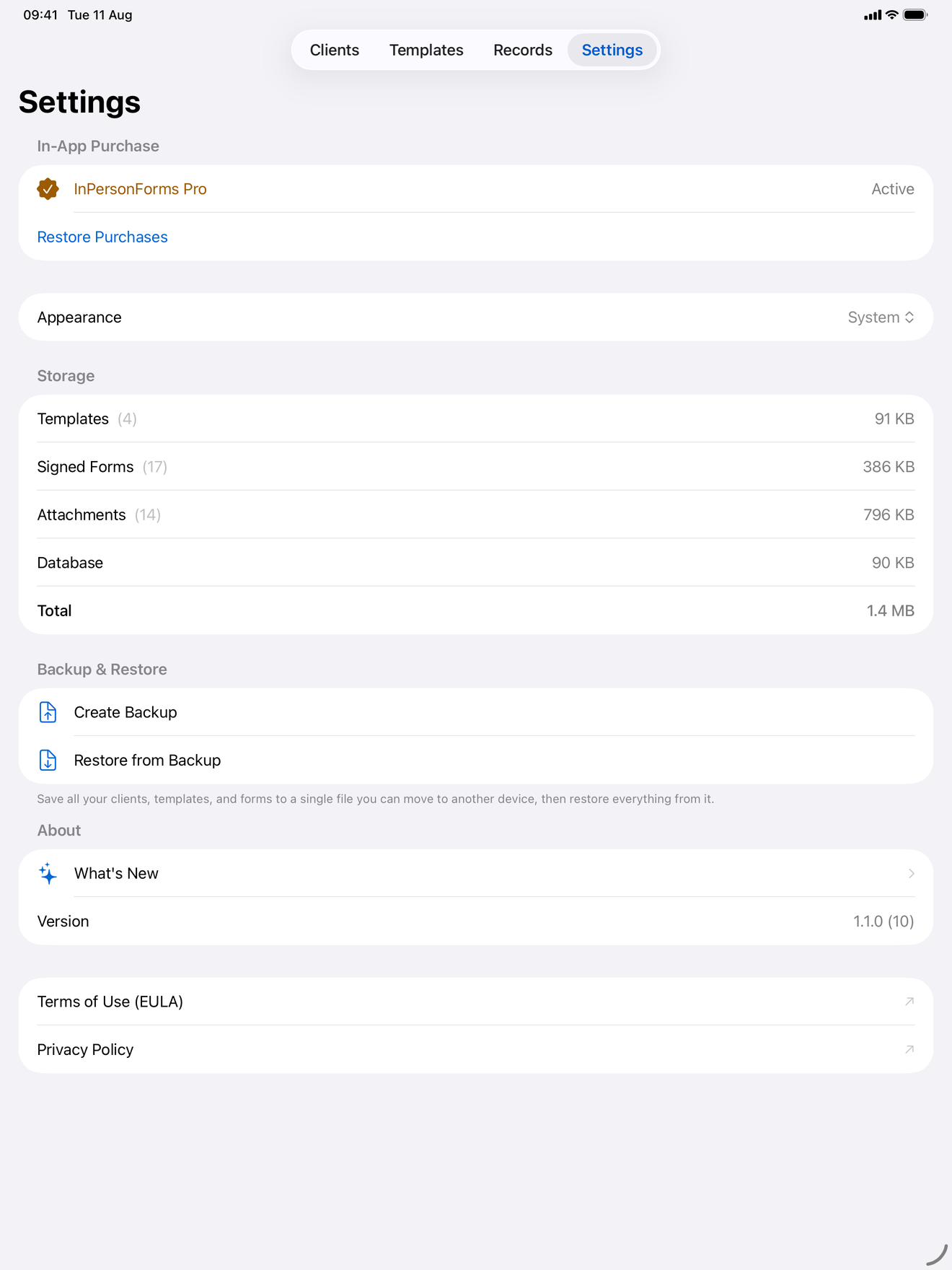
Each stored file gets a SHA-256 hash and a recorded size. The size is what lets the storage breakdown in Settings show attachments separately from templates and signed PDFs, so you can see what is actually filling the device.
Mark it up without a round trip
The other reason documents leave the app is annotation. Circle the policy number, or note that a card has expired.
Open an attachment and Apple’s markup tools are there. Save, and the edited version goes back onto the attachment in place, with a fresh thumbnail. Edited items get a small marker, and the attachments page carries a key explaining it, so a month later you can still tell which items are the original capture. The date shown is the date added, or the date of the last edit.
What it does not do
Two limits, because they change what this is good for.
An attachment belongs to a client, not to one specific signed form. The record does not say “this is the ID we checked when this consent was signed”. If that link matters for your paperwork, note it in a field on the form itself.
Attachments are also not embedded into the exported PDF. When you share a signed form, you get the form; the attachments stay in the app, and you share them separately if someone needs them. There are no captions either, so the file name is the label, which is a reason to rename a scan before adding it rather than leaving it as Scan 2026-07-16.pdf.
The short version
Supporting documents belong on the client’s record. Photos and files attach straight to a client, you can preview and mark them up in place, and photos lose their location metadata before they are stored. The free tier allows ten per client and Pro removes the limit. An attachment points at a client rather than at one signed form, and it stays in the app rather than riding along inside an exported PDF. All of it works offline.
InPersonForms is on the App Store for iPhone and iPad.