
You have three hundred signed intake forms on the iPad. Someone asks how many clients ticked “no prior injuries” this quarter. Every answer you need is sitting in those PDFs, and there is no way to count them short of opening three hundred PDFs.
This is the gap between a record and data. A signed PDF is the right artifact for “what did this person agree to, and when”. It is the wrong artifact for any question about more than one person. The usual answer is a cloud plan with a reporting dashboard. That genuinely works, and if you already pay for one, use it. It also means an account, a subscription, and your clients’ answers on a vendor’s server, all so you can count checkboxes.
This is about getting the data out, not about setting the forms up. If the templates and records side is not in place yet, that is covered separately.
The list you are looking at is the export
Open a template in Records and you get its submissions as a table. Sort it, search it, filter it down to a client or a template or an answer stored in a client profile. Then export.
The export takes the list as it stands, after the search, the filters, and the sort. There is no separate export dialog with its own date pickers and its own idea of what to include. The filter you already set is the query, which means you check what you are about to export by looking at it first.
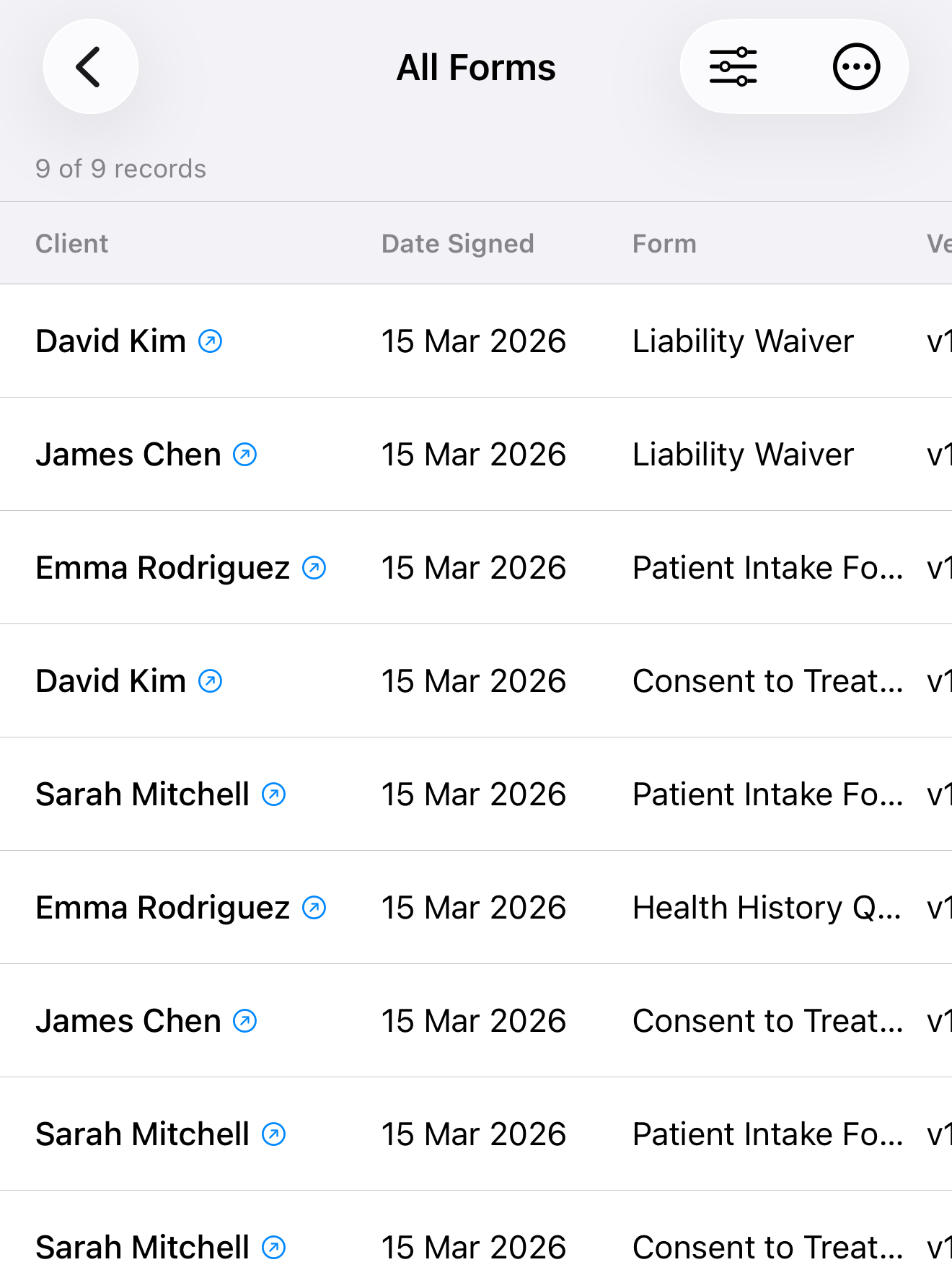
If the count above the table says three of sixteen records, the file will have three rows. Narrow the list, confirm the count, export. You can also export from the All Forms view, across every template at once. That adds a template column so rows from different forms stay readable.
Each row starts with the client name, then date signed and time signed in separate columns, then the version number. After that, one column per data field on the form.
CSV export is part of Pro, along with the sorting and filtering that make the scoping possible.
Two header styles, and when each one matters
Before the file is written you pick what goes in the header row. The right answer depends on who opens the file.
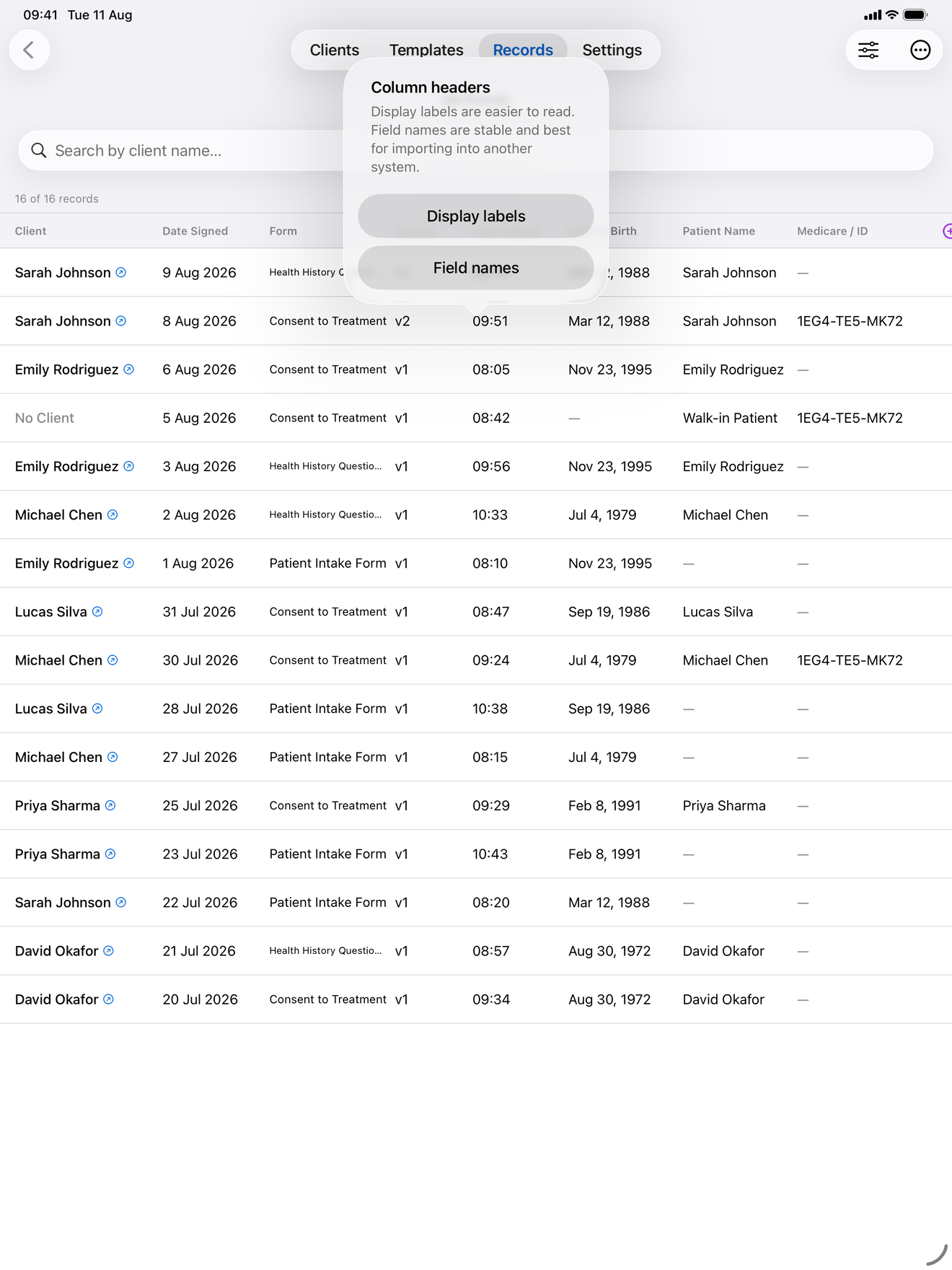
Display labels are the labels as a person reads them, the same text the on-screen table shows. Pick this when a human is opening the spreadsheet: someone counting responses, or a colleague checking a month’s intake.
Field names are the machine identifiers behind those labels. They are ASCII, unique, and they do not change when you rename a field’s label or when the app is running in another language. Pick this when the file is going into something else: a practice management system, a billing import, a script. Next quarter’s export then has the same column keys as this quarter’s. Display labels cannot promise that if anyone edits the template in between.
The details that decide whether the file opens properly
Most CSV trouble is an encoding problem. It shows up as client names full of question marks.
The file is written with a UTF-8 byte order mark at the start. That is why a name with an accent, or a Japanese address, opens correctly instead of as question marks when someone double-clicks the file in Excel. Values containing a comma, a quote, or a line break get quoted, with their own quotes doubled, per RFC 4180, so a free-text answer with a comma in it will not silently split into two columns. Rows end with CRLF, which is what RFC 4180 specifies and what older Windows tools expect.
The finished file goes out through the normal share sheet, so it can land in Numbers, in Excel, in an email, or in Files. The suggested name comes from the template.
Why signatures are left out
Signature and initials fields are excluded from the export. A drawn signature has no text value that means anything in a cell, and putting an empty column there, or a placeholder like “signed”, would invite someone to treat a spreadsheet as proof of signing. It is not. The signed PDF, with its hash, is the record of what was signed. The CSV is for counting and reporting.
The short version
You do not need a reporting plan to answer a question about your own forms. Filter the records list down to what you want, confirm the count, and export it as CSV. Choose display labels for a person and field names for a system. The file is written so Excel opens it correctly and free-text answers with commas survive intact.
InPersonForms is on the App Store for iPhone and iPad.