
A signature collected on a screen can go wrong in two quiet ways. It comes out looking like a jagged scrawl that does not resemble the person’s real signature, or it gets saved as a loose image that you then have to remember to attach to the right document later. Both are avoidable. The signature can look natural, and it can land inside the document the moment it is drawn.
This is the practical side of signing on an iPhone or iPad: where the signature goes, how to draw a clean line with a finger or an Apple Pencil, and how to make sure it ends up written into the PDF rather than floating beside it. The screenshots are from InPersonForms, but the mechanics apply to signing on iOS in general. If you want the separate question of whether a signature captured this way is legally valid, that is covered in will a signature collected on an iPad hold up.
Put a signature field where the signature belongs
Before anyone signs, decide where the signature lands on the page. On a PDF that already has a signature line, place the field right on that line. On a plain form, drop it where a printed copy would have the signature box.
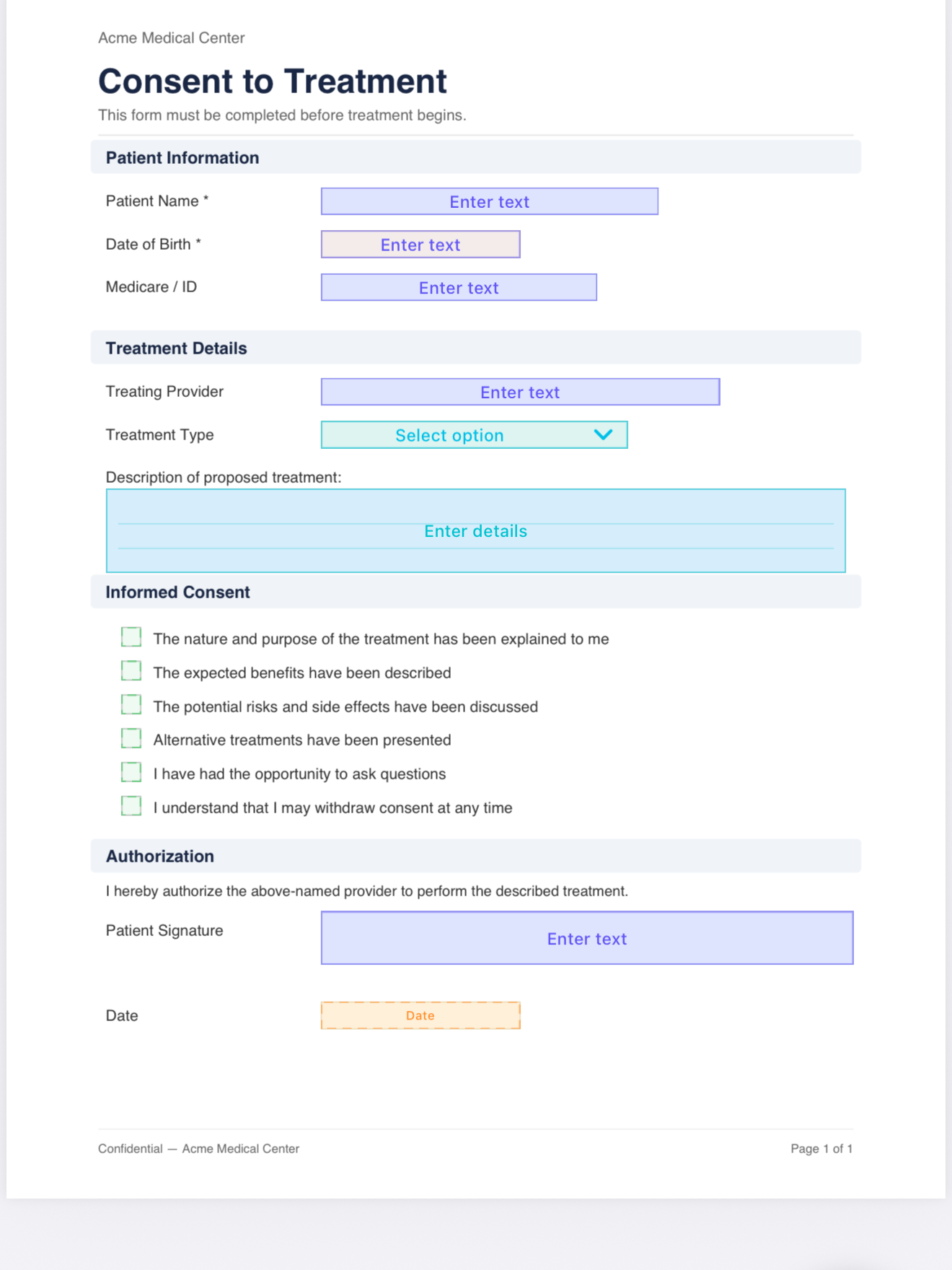
Two things matter here. First, the field type: a signature field is for a full signature, and there is a separate initials field for the spots that just need initials. Use the right one so the page reads correctly. Second, the size. A field that is too small forces a cramped, unnatural signature, and people compensate by signing slowly and badly. Give it roughly the width and height a real signature would take. You set this once and save it as part of the template, so every later form starts with the field in the right place at the right size.
Finger or Apple Pencil
Both work. The difference is control.
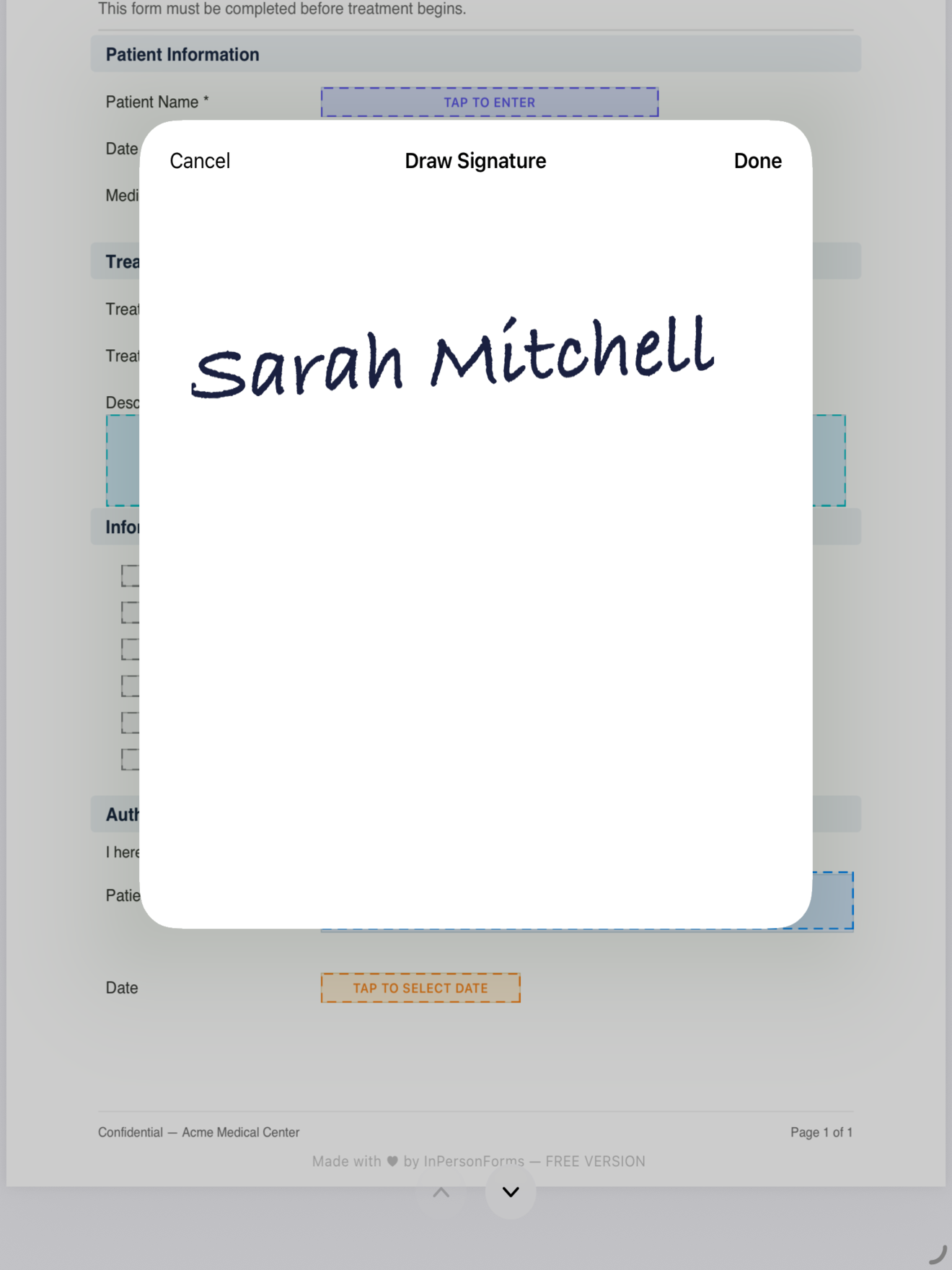
A finger is fine for a one-off signature, which is the common case when you hand the device to a client. The trick is to keep the device still. Set it flat on a table rather than holding it in the air, and the line steadies immediately. Most “bad finger signatures” are really bad surfaces.
An Apple Pencil gives a closer match to a real pen signature. You get a fine tip instead of a fingertip, and the line responds to how hard you press, so it thickens and thins the way ink does. For a signature you draw often, like your own on a job sheet, the Pencil is worth it. Palm rejection means the signer can rest their hand on the glass while drawing, the same as signing on paper.
Getting a clean line
On iOS the drawing itself is handled by PencilKit, Apple’s built-in drawing system. It smooths each stroke as it is drawn, so you do not get the stair-step jaggedness of raw touch input. That removes the most common cause of an ugly signature before you do anything.
What is left is mostly physical. A few things that help:
- Steady the device. Flat on a surface beats held in mid-air, for fingers especially.
- Sign at natural speed. People sign worst when they slow down to be careful. A normal, slightly fast motion looks more like their real signature.
- Use the room you gave the field. If the box is the right size, there is no reason to shrink the signature into a corner.
- Redo it if it is wrong. Clear the stroke and sign again before saving. It costs a few seconds and there is no reason to keep a bad one.
If a signature still comes out cramped, the field is almost always too small. Go back and make it bigger in the template, and the next one improves on its own.
Write it into the PDF, and flatten on export
This is the part that separates a usable signed document from a pile of loose files. When the signature is drawn in the field you placed, it is placed directly onto the page at that spot, not saved as a separate image you attach later. There is nothing to reconcile and nothing to lose.
On export, the signature is flattened into the PDF. Flattening means it stops being a separate movable layer and becomes part of the page itself, the same as printed text. That matters for two reasons. A flattened signature renders identically in every PDF viewer, so it will not shift position or vanish when someone opens the file in a different app. And it cannot be dragged off, deleted, or quietly edited as an annotation. The exported file is a standard PDF, so the person receiving it can open it anywhere without your app.

The short version
A clean signature on iOS comes down to a few mechanics: place a properly sized field where the signature belongs, draw with a finger on a steady surface or an Apple Pencil for finer control, let PencilKit handle the smoothing, and export a flattened PDF so the signature is written into the document for good. Get those right and the signature looks like the person’s real one and stays exactly where you put it.
InPersonForms does this on iPhone and iPad, fully on the device, and it is on the App Store.