
A client fills in the intake form on the iPad at the front desk and signs the consent. Then they walk down the hall to Room 2, where the iPad on the counter has never heard of them.
Until now InPersonForms gave you two ways around that. You carried one iPad from room to room, or you moved data with a backup, which replaces everything on the device it lands on and so cannot combine two iPads that have both been collecting forms. Version 1.4.0 adds Sync Across Devices, in Settings. The iPads and iPhones in one practice keep the same clients, templates, and records, with no server of ours in between.
One main device, and every device keeps a whole copy
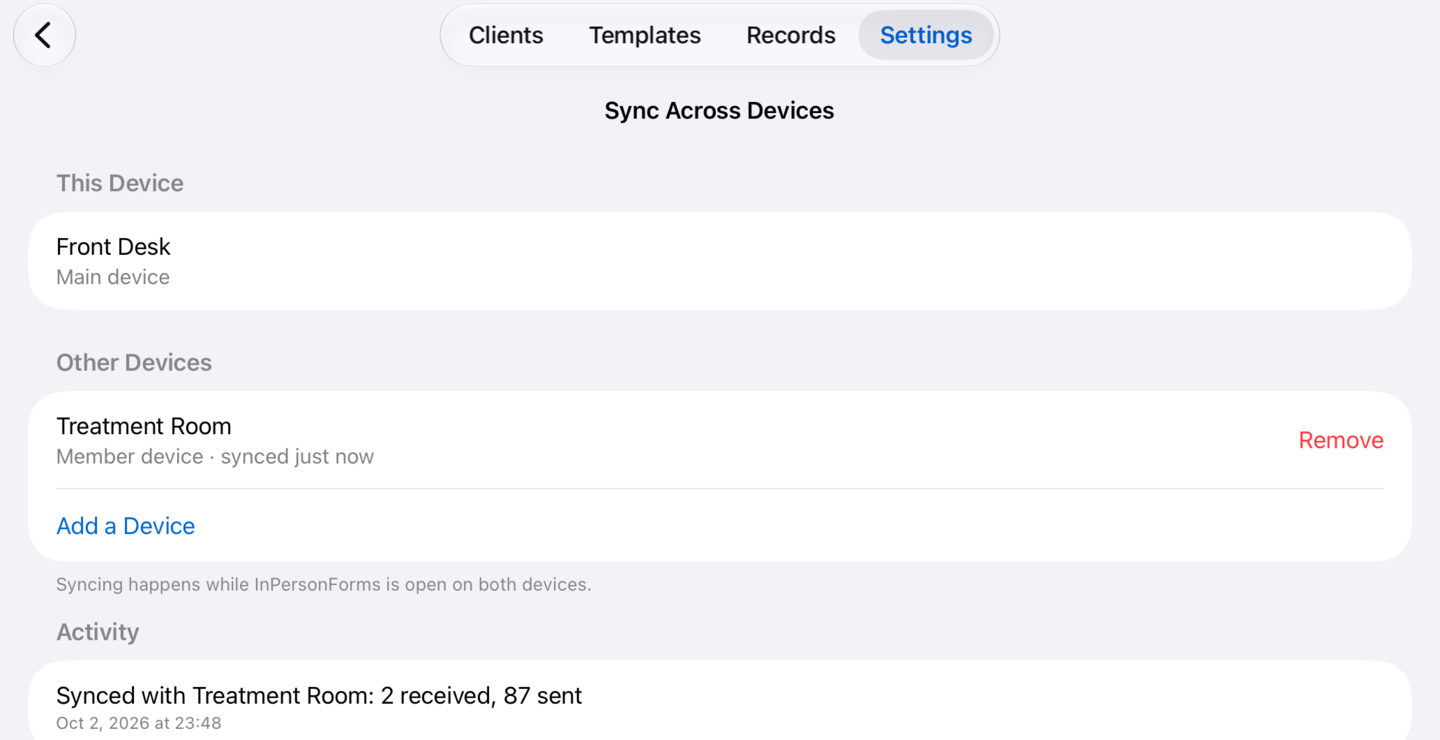
You choose one device as the main device, usually the one that is open most of the day, like the iPad at the front desk. Every other device syncs with the main device and only with it, so a form signed in Room 1 reaches the main device and Room 2 picks it up from there.
Each device still holds the whole set of clients, templates, and records, and works without the others. If the iPad in Room 3 spends a day off the Wi-Fi, it fills forms all day as usual and catches up the next time it is on the same network as the main device.
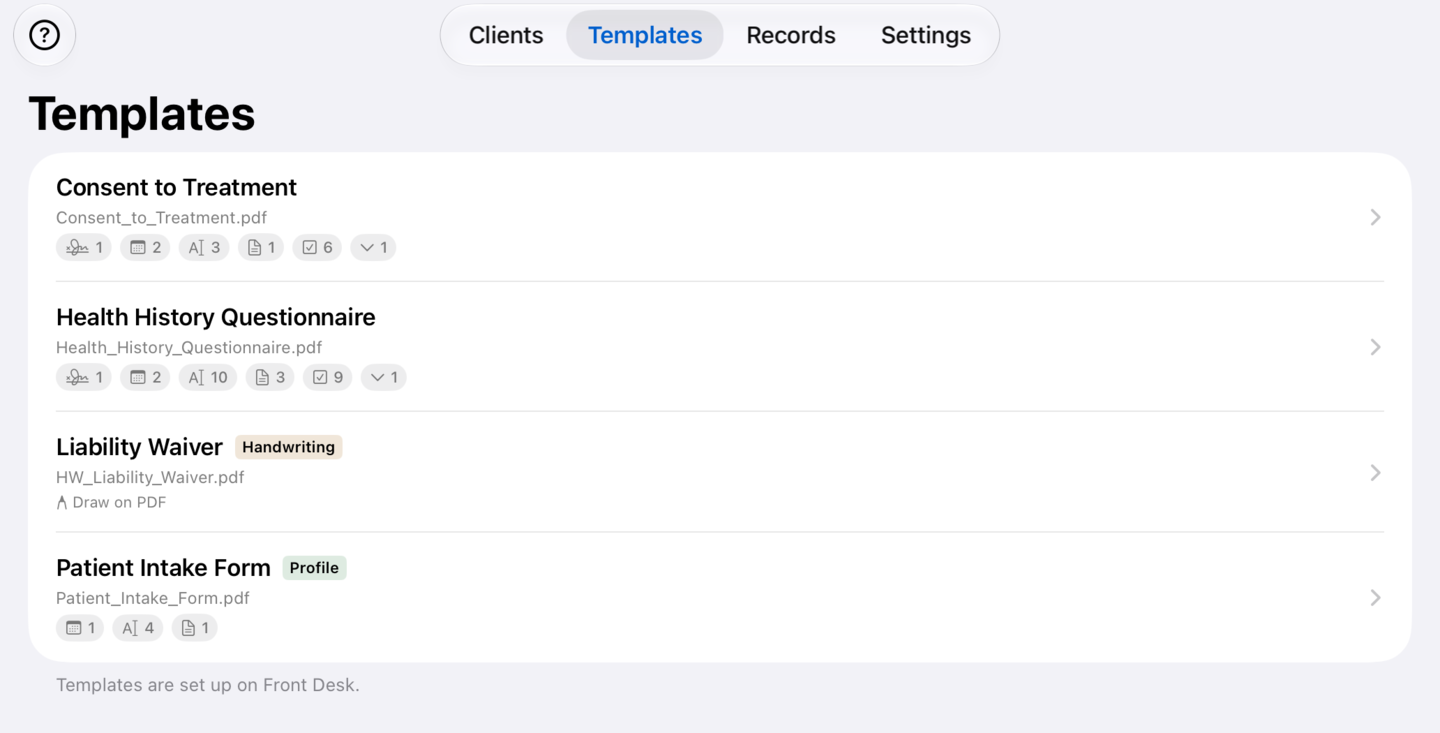
Clients, records, and attachments can be added and changed on any device. Templates are the exception: they are set up and edited on the main device only, and the other devices use them to fill forms. On those devices the Templates tab has no add button and says which device templates are set up on, and a PDF shared to one of them does not become a template. So a signature field placed on the consent form at the front desk sits in the same place on every device.
What it needs
The devices need one network between them. They find each other on the Wi-Fi they share, and that Wi-Fi does not need to reach the internet. Where there is no shared Wi-Fi, you can also turn on Personal Hotspot on one iPhone and join it from the other devices, if that iPhone can share its connection.
InPersonForms has to be open on both devices, because iOS does not let an app keep listening for other devices once it is in the background. While it is open, each of the other devices syncs with the main device when you come back to the app, a few seconds after something is saved on it, every couple of minutes, and whenever you tap Sync Now on it. A change made on the main device reaches each of the others at their next sync.
Every device also needs InPersonForms Pro, the main device included. Pro is a one-time purchase tied to the Apple Account that bought it, so every device signed in to that Apple Account gets it with Restore Purchases.
Some networks, often guest Wi-Fi or ones set up to keep devices apart, do not let devices find each other. On one of those, switch both devices to another network, use an iPhone’s hotspot, or ask whoever runs the network.
The first time you set up sync, iOS asks whether InPersonForms may find devices on your local network. Allow it. If it was refused, the app says it can’t see other devices and asks you to allow Local Network in Settings.
Setting it up
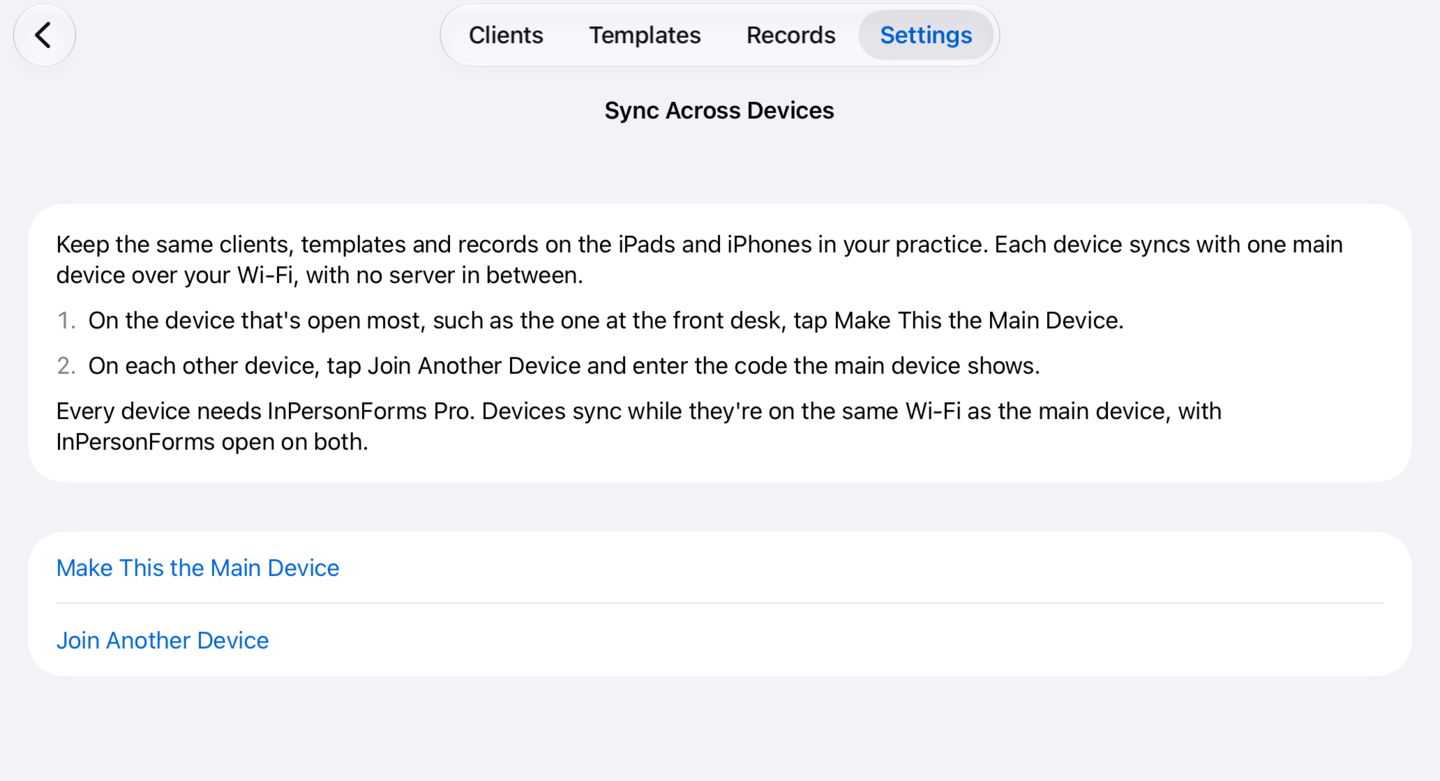
- On the device that is open most, open Settings, then Sync Across Devices, and tap Make This the Main Device. Give it a name the others will recognize, like Front Desk.
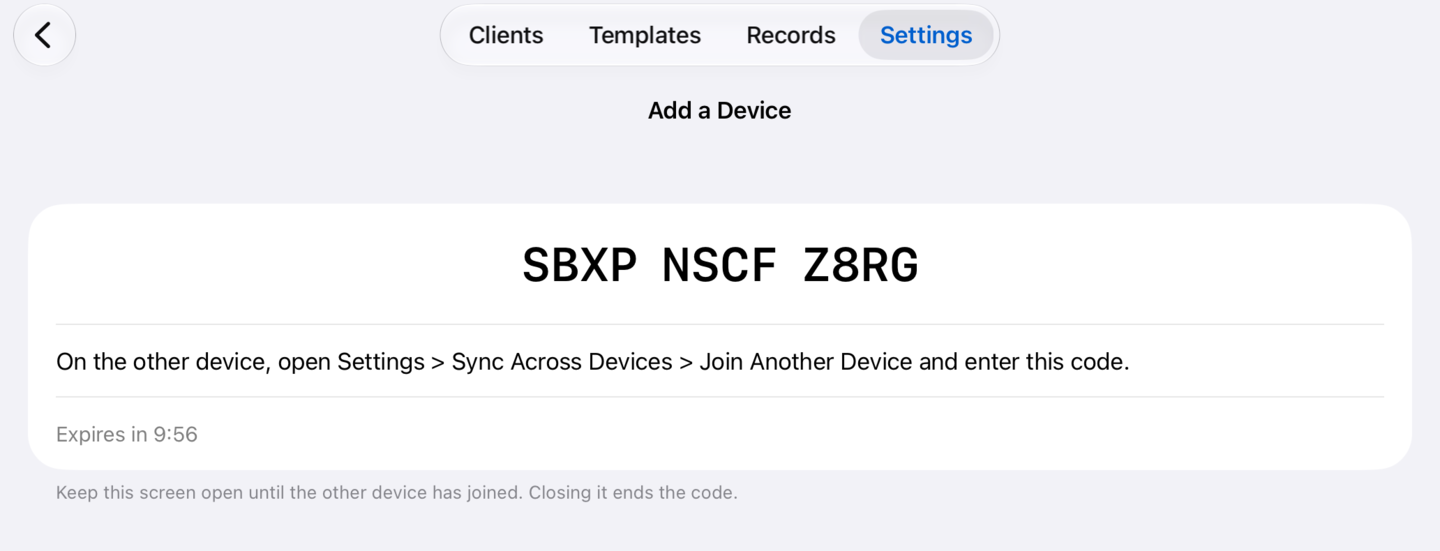
- On each other device, open the same screen, tap Join Another Device, and enter the code the main device shows.
The code is twelve letters and numbers, shown in three groups of four. It works only while that screen is open on the main device, and for ten minutes at most. To add a device later, open Sync Across Devices on the main device and tap Add a Device for a new code.
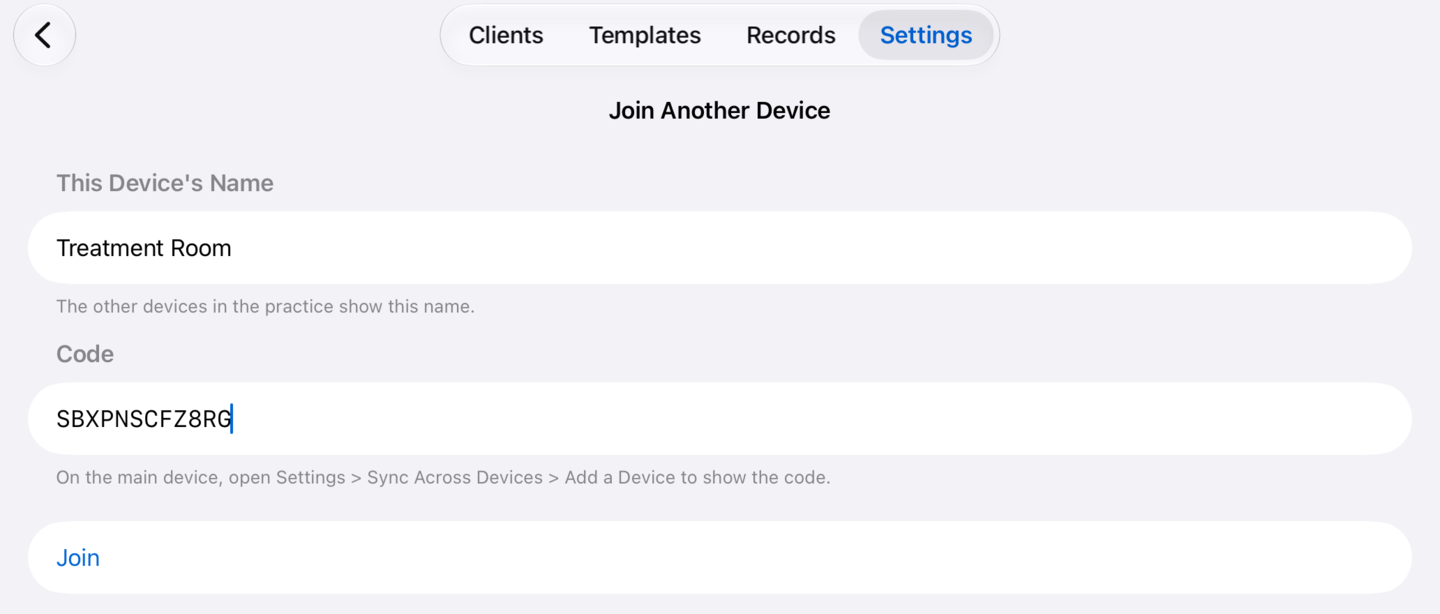
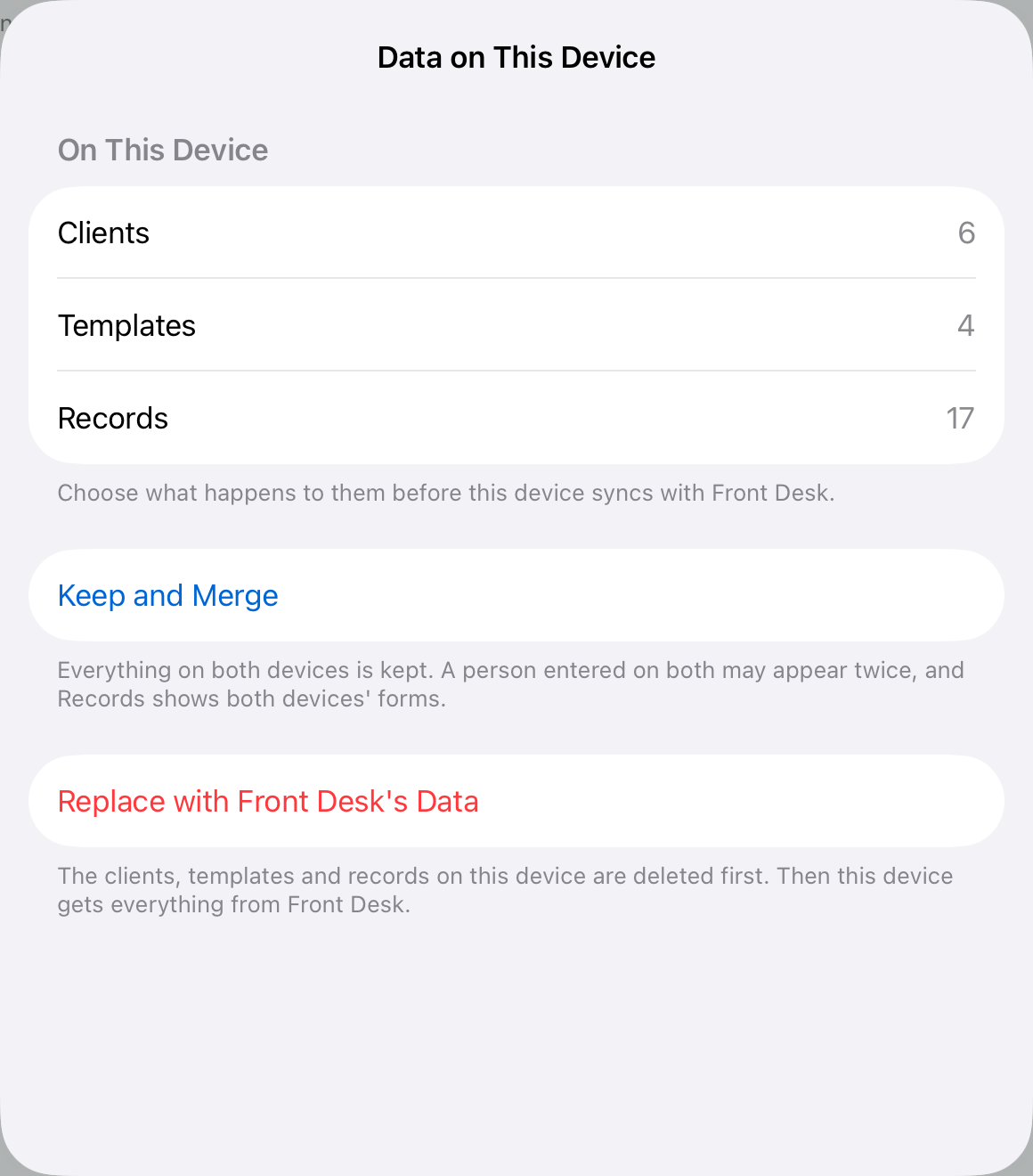
If the joining device already has clients, templates, or records, it asks one question before anything moves. Keep and Merge keeps everything on both devices, so a person entered on both may appear twice. The other button carries the main device’s name (Replace with Front Desk’s Data, if that is what you called it) and deletes what is on the joining device first. A new, empty iPad skips the question.
When two rooms change the same client
Each room usually has its own client in front of it, so two rooms rarely change the same person. When they do, changes to a client are kept field by field. If the front desk updates Sarah’s phone number while Room 1 corrects her email, both changes stay. If both change the same field, the later change wins, and the activity list on the Sync Across Devices screen names the client and the field so someone can check it.
Signed forms are never merged into each other. Each one is its own record, so two rooms that sign forms at the same moment both keep theirs.
Where the data goes, and where it does not
The devices connect directly to each other over your network. There is no account to create and no server of ours for the data to pass through, and the connection is encrypted with a key that only the devices you joined hold.
A backup still holds one device’s data. In a practice that syncs, restore a backup on the main device. Each of the other devices is then asked to replace its data with the main device’s, so everyone ends up on the same copy again.
The main device can also remove a device from the practice. That device is told it was removed and stops syncing, but it keeps what is already on it, because nothing is wiped remotely.
What it does not do
Devices that cannot share a network do not sync, and nothing happens in the background. If two rooms each enter the same person, that person stays two entries. And the Mac and Android are not part of it.
The short version
Pick the device that is open most and make it the main device under Settings, Sync Across Devices. Then join each other iPad or iPhone with the code the main device shows. From then on every device keeps the same clients, templates, and records whenever they share a Wi-Fi network or one iPhone’s hotspot and InPersonForms is open on them. Templates are edited on the main device only, and every device needs Pro.
InPersonForms is on the App Store for iPhone and iPad.