
Keeping client data on the device solves a lot. It leaves one problem: there is a single copy, and it is in your bag.
The advice in an earlier post here was to lean on the device’s own backup routine. That advice was thin. You cannot hand a whole-device backup to a new iPad on a Tuesday morning, cracked screen on the desk, client waiting. You also cannot keep a copy of it somewhere away from the device it came from.
So: one file, holding everything.
One file, and what is in it
Settings has a Backup and Restore section. Create Backup writes a single archive and hands it to the share sheet, so you decide where it goes.
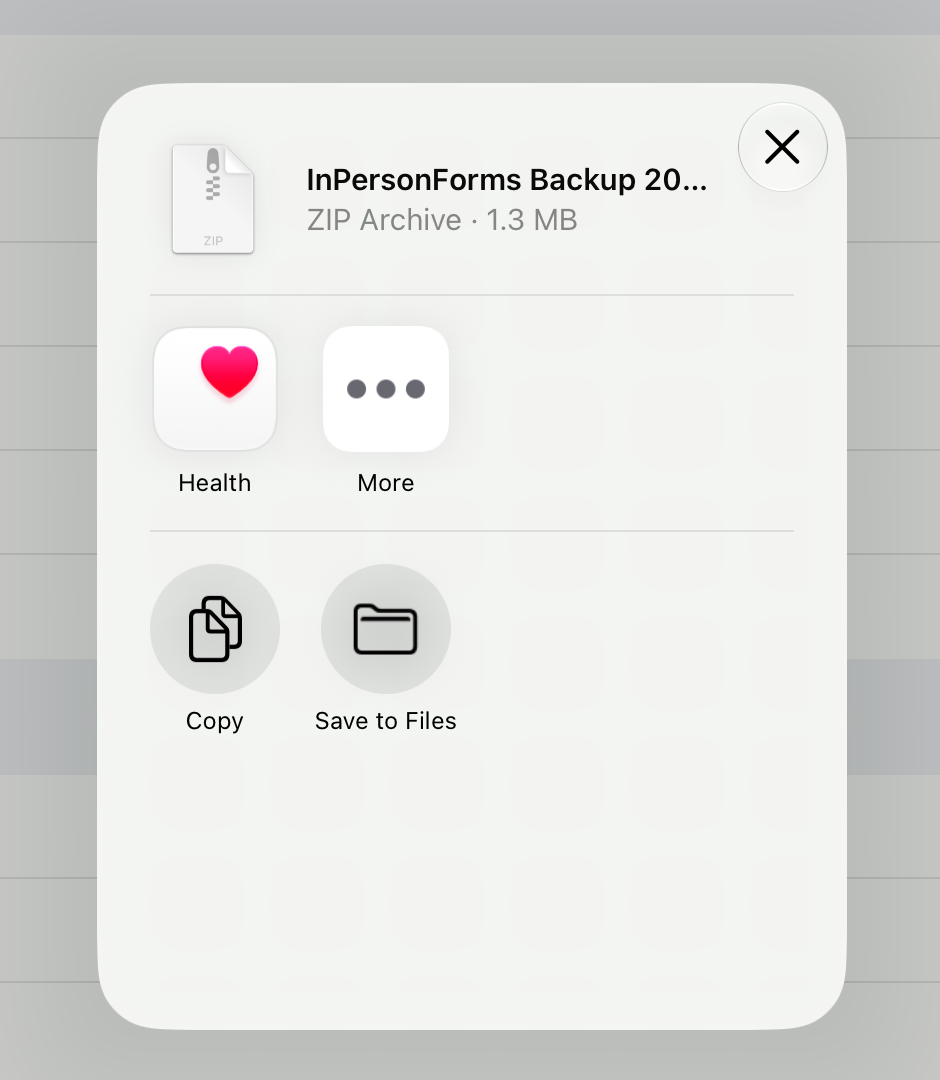
Inside that archive is a dump of your clients, templates, and signed forms. Alongside it sits every file those records point at: template PDFs, signed PDFs, and any attachments on a client. That last part matters, because a backup carrying the database but not the PDFs would restore a list of forms that all failed to open.
The file is named after the date it was made, so a folder of them sorts itself.
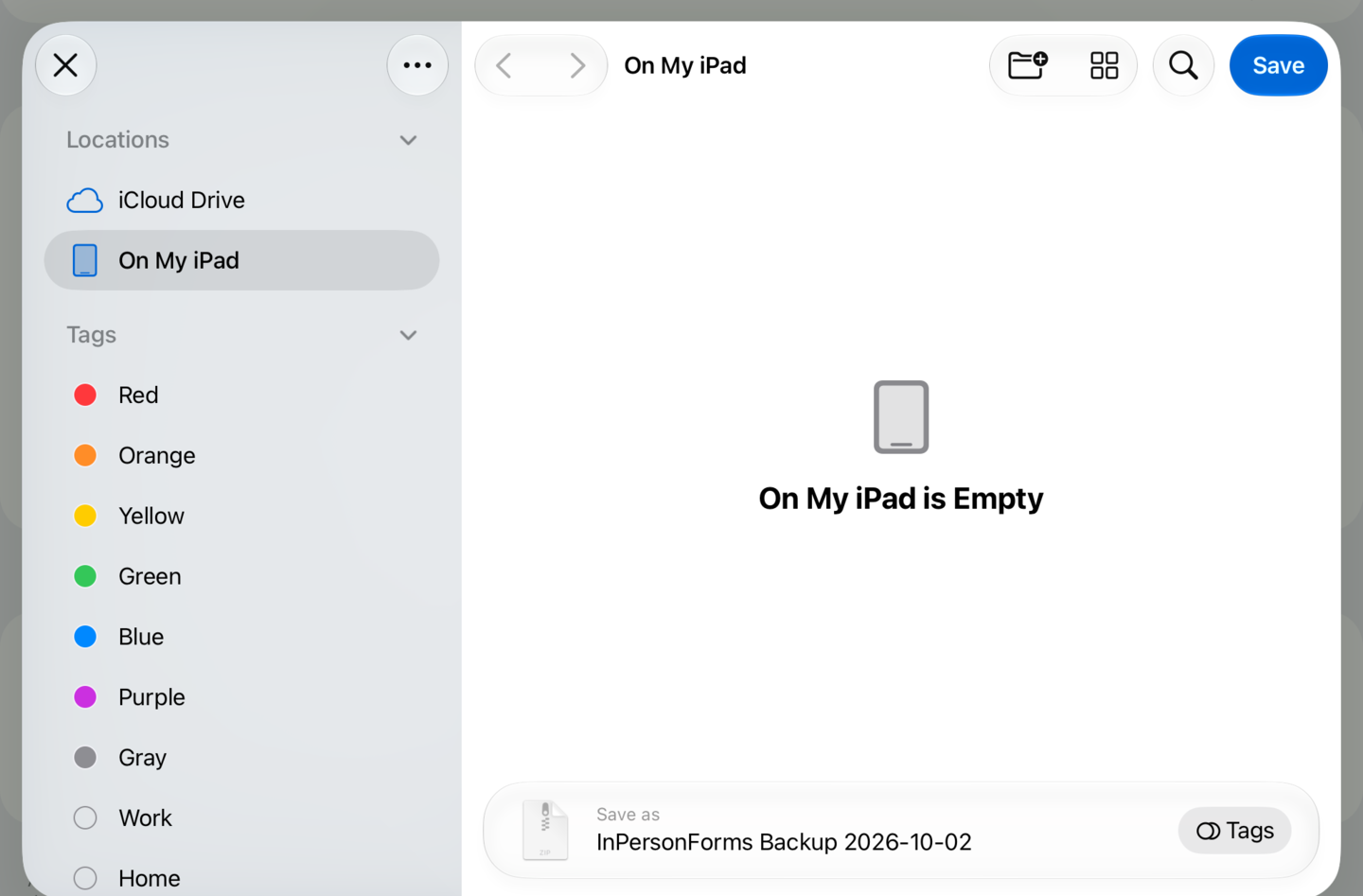
It stores your data, not a copy of the database
The straightforward way to build a backup is to copy the app’s database file. It works until the app updates and changes the shape of that database, at which point old backups either need migrating or stop restoring. That is how backups quietly rot.
Instead, a backup here is a readable dump of the records themselves, written out and then read back in through whatever version of the app is doing the restoring. A file made on an older version restores into a newer one: the new version reads the records and saves them the same way it saves anything else. So a backup from six months ago is still a backup.
Restoring replaces, it does not merge
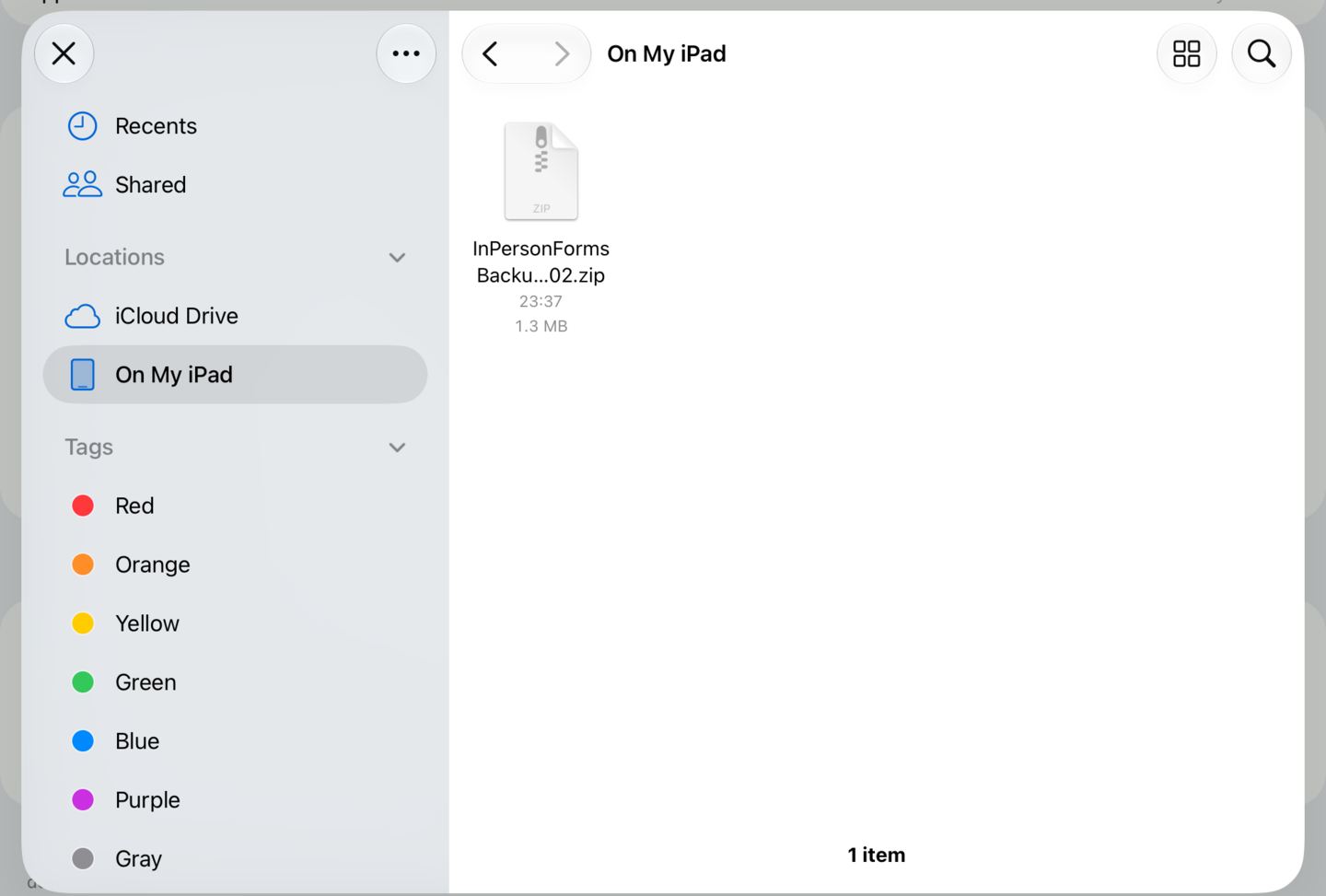
On the new iPad, Restore from Backup opens the Files picker. Go to wherever you put the file and choose it.
Nothing happens yet. The app asks you to confirm first, and the confirmation says what it does: it replaces all current clients, templates, and forms with the contents of the backup, and it cannot be undone.
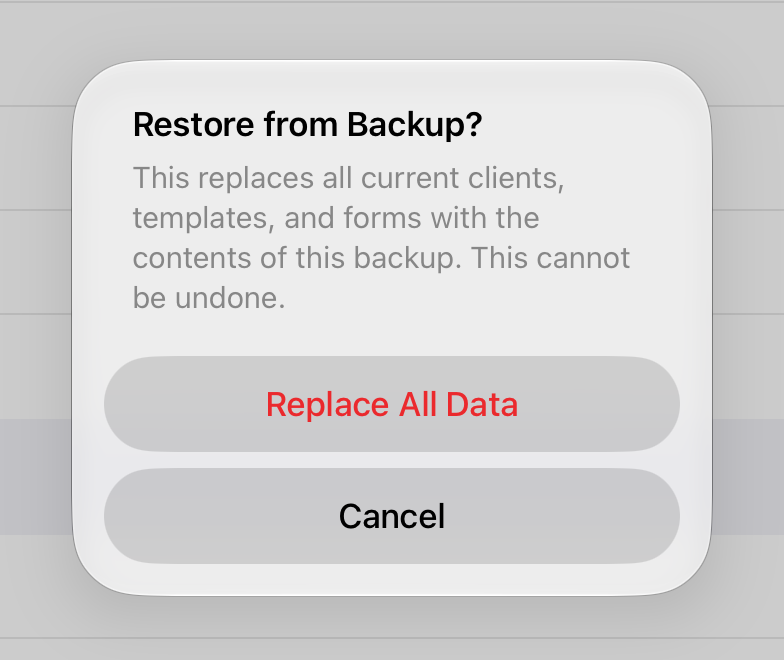
Restoring is for a new or wiped device, or for rolling a device back to a known state. It is not a way to combine two iPads that have both been collecting forms. If you restore a Monday backup onto a device that has been signing forms all week, that week is gone.
Keeping several iPads in one practice on the same clients and records is what Sync Across Devices in Settings is for, and a new iPad joined to it gets everything from the main device without a backup. In a practice that syncs, restore a backup on the main device only; the other devices are then asked to replace their data with the main device’s.
A restore that fails partway will not leave you stranded. It checks the archive first. Then it copies the new PDFs in, which is safe because their names cannot collide with what is already there. Last, it swaps the records over in one go. If anything breaks before that swap, the copied files are removed again and your existing data is exactly as it was. There is no state where half a backup has landed.
A restore can also finish with warnings rather than failing outright. The usual one is a PDF whose contents no longer match what the archive recorded for it, which normally means the file was damaged in transit. You get told which file, and the rest of the restore completes. Refusing everything because one file is off would be worse.
Where to keep the file
A backup that only lives on the iPad is not a backup. Once the share sheet is open, pick the option that means the file survives losing the device: iCloud Drive, a folder on a computer, an external drive, or AirDrop to a second device in the practice.
A backup contains all of your client data. If you run everything on the device because client information should not sit on a vendor’s server, apply the same rule to where the backup goes. A practice-controlled computer or an encrypted external drive keeps that property; a random cloud folder does not. It is one file, not a sync process, so you decide where it lands each time.
Two habits. Make a backup before restoring one, so the state you are leaving is recoverable. And make one after any session where you set up templates, since re-placing fields on a form is the slowest thing to redo.
Backup and restore is part of Pro.
Update, September 15, 2026: automatic backups
Since version 1.2 the app can make the backup for you. Under Backup and Restore, turn on Back Up Automatically. It writes the same file Create Backup does, into an InPersonForms folder in your own iCloud Drive, which you can open in the Files app on any of your devices. It is never sent to our servers.
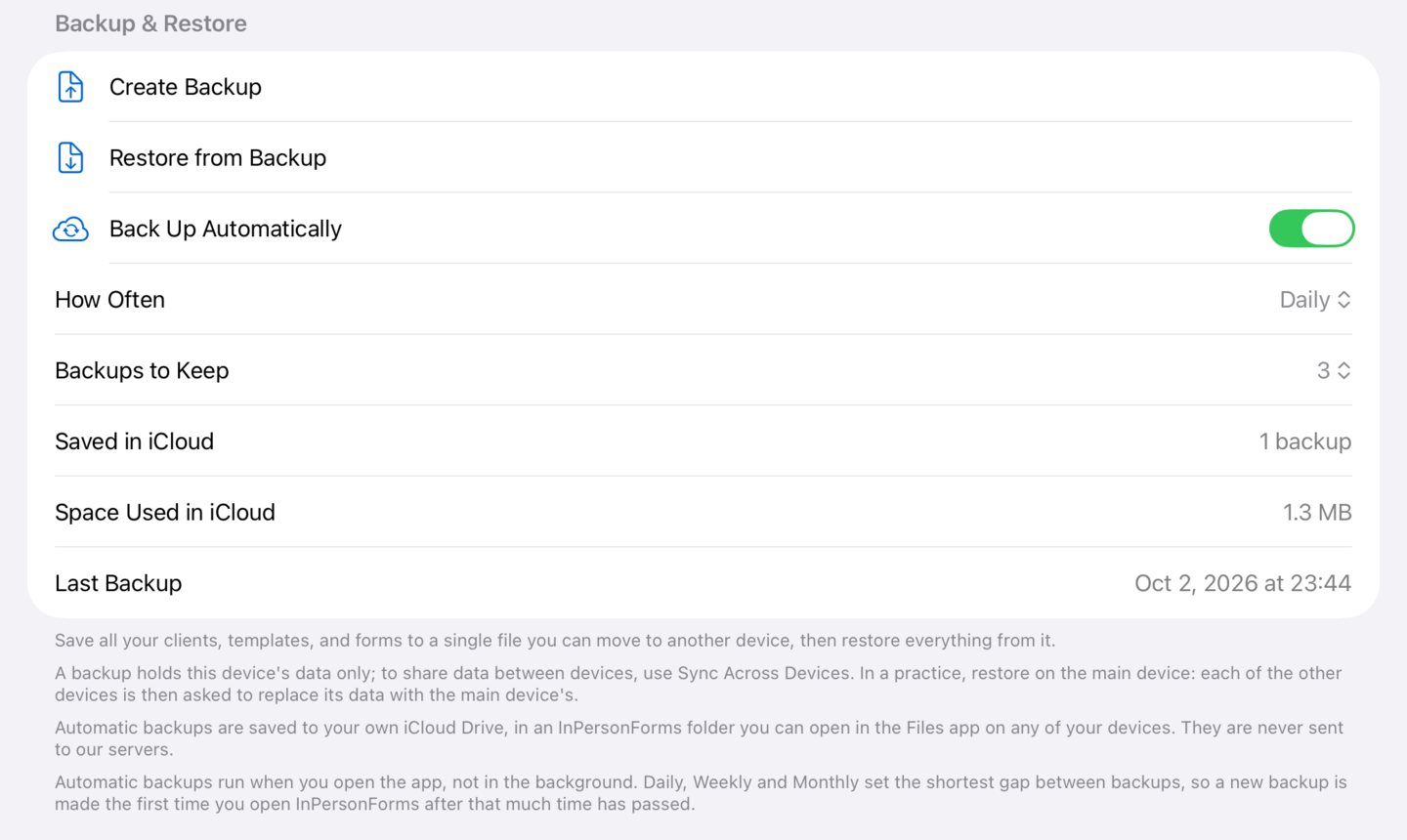
How Often sets the shortest gap between backups: Daily, Weekly, or Monthly. The app does not run in the background, so the backup is made the first time you open InPersonForms after that much time has passed. Backups to Keep is 1, 3, 5, or 10, and once there are more than that the oldest is deleted. The rows under it say how many backups are in iCloud, how much space they take, and when the last one was made.
If a backup could not be made, a note under Last Backup says why: iCloud Drive is off or you are signed out, iCloud storage is full, or the write did not finish and will be tried again the next time you open the app. The last good backup stays listed, so a backup that has stopped does not look like one that is working.
Restoring an automatic backup works the same way as any other. Choose Restore from Backup and pick the file from the InPersonForms folder in iCloud Drive.
This does put client data in iCloud. It is your iCloud account, not ours, but if your rule is that client data stays off every cloud service, leave the switch off and keep making backups by hand to a drive you control.
The short version
Create a backup in Settings and you get a single file holding every client, template, signed form, PDF, and attachment. Back Up Automatically writes that file to your own iCloud Drive on a schedule. It stores your records rather than a database file, so old backups still restore after app updates. Restoring replaces everything on the device and says so before it starts, so use it for a new or wiped iPad rather than to merge two of them. Keep the file somewhere that survives losing the device, and somewhere you are willing to have client data.
InPersonForms is on the App Store for iPhone and iPad.